Key takeaways
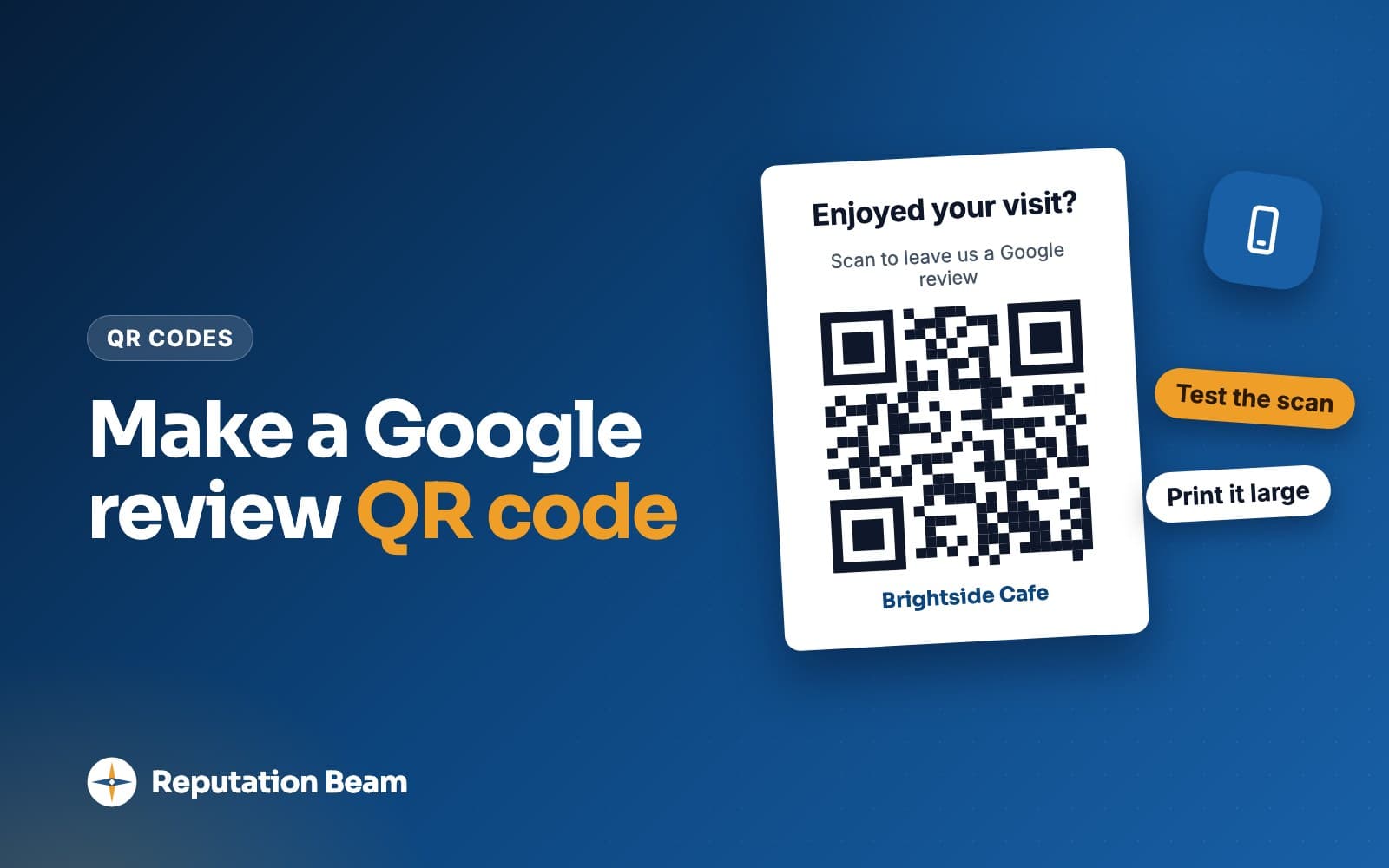
- Google gives every business with a Business Profile a free review QR code. On a computer, open your Business Profile, select Read reviews, then Get more reviews, and save the image.
- Use Google's code or a static code. A dynamic code from a free generator can stop working when a trial or plan ends, and every printed card goes dead with it.
- Print it dark on light, big enough for the distance, with a line saying what it opens and a short link underneath. Scan one printed copy in place before ordering a batch.
- A sign reaches the customers who notice it. Pair it with the same short spoken ask for everyone, and keep discounts, star counts and pressure off the wording.
In this guide
- Does Google have a QR code for reviews?
- Free Google review QR code generators: static vs dynamic
- How to print a Google review QR code that scans
- Where to put your review QR code, by type of business
- NFC Google review cards vs QR codes
- What to write on a Google review QR code stand, sign or card
- What Google means by pressure "while on the premises"
- Why a QR sign works best with a spoken ask
- Common mistakes with review QR codes
- Google review QR code checklist
- Where Reputation Beam fits
- Keep going
A Google review QR code turns "sure, I'll leave you a review" into a review form on the customer's own phone a few seconds later. Google gives every business with a Business Profile one for free, and an afternoon with a printer puts it on your counter, your invoices and your van.
This guide covers how to get the code, when a third-party generator makes sense (and the free-code trap that kills printed cards months later), how big to print it, where it goes in different businesses, how NFC tap cards compare, and ten sign wordings that stay inside Google's rules.
A sign works best as one part of asking every customer the same way. How to ask customers for reviews covers the spoken ask, the text and the email that go with it.
- 1
Get the code
Save Google's free code from your Business Profile, or make a static one from your review link.
- 2
Test it
Scan it with an iPhone and an Android phone, including one not signed in to Google.
- 3
Print one
Real size, real paper, real lighting. Scan it again where it will live.
- 4
Place and ask
Put it where every customer sees it, and mention it in one sentence at the end of the visit.
Does Google have a QR code for reviews?
Yes. Your Google Business Profile has a free review QR code and link. On a computer, go to your Business Profile, select Read reviews, then Get more reviews, and right-click the QR code to save it. Google says review QR codes can currently be generated only in a computer browser, not on a phone or tablet.
Google's help page on creating a review link or QR code gives these steps:
- On a computer, go to your Business Profile.
- Select Read reviews, then Get more reviews. You can share the link or QR code from there.
- Right-click the QR code and select Save image as. To copy the link instead, use the Copy icon.
The same page suggests putting the link or code on receipts, in thank-you emails and at the end of a chat, and printing the QR code to display in your store.
Scan the saved image on your screen with your phone. It should open a review form for your business. Then try a phone that isn't signed in to Google: Google's tips for getting more reviews say customers "must be signed into a Google Account to leave a review," and can set one up with a non-Gmail address. Now you know what a customer without an account sees when they say the code "didn't work."
If you can't find Get more reviews, check that you're on a computer and signed in with the account that manages the profile, then compare your screen with Google's page, since menus move. How to find your Google review link and test it walks through the options. Every QR code is a picture of a web address, so test the link first and make the code second.
Free Google review QR code generators: static vs dynamic
Any QR code generator can turn your Google review link into a code, often for free. A static code stores the link itself and works as long as the link does. A dynamic code stores a short address on the generator's servers that forwards to your link, so it can stop working if that service closes or your plan ends.
People use a generator for a sharper image for a big print, brand colors, or the option to change where the code points without reprinting. Each option has a different weak spot.
| Option | Cost | Can you change where it points? | What can break it |
|---|---|---|---|
| Google's code from your profile | Free | No | Only the review link itself |
| Static code from a generator | Usually free | No | Only the review link itself |
| Dynamic code from a generator | Often a paid plan | Yes, in the generator's account | The plan lapses or the company closes |
| Static code to an address on your own website | Free if you have a site | Yes, by editing the redirect | Your website or domain lapsing |
For most small businesses, Google's code or a free static code is the right answer. Few businesses ever need to change where a review code points, so the main feature of a dynamic code seldom matters.
The free dynamic code trap
Some generators make dynamic codes by default and call the sign-up free. The code works on day one. Then the trial ends, and the generator may stop forwarding scans or send them to an upgrade page. By then the code is on 500 business cards, a van decal and every table in the restaurant.
Dynamic codes: what you get
- Change the destination without reprinting
- Scan counts, on plans that include them
- Separate codes per placement, to see which one gets used
Dynamic codes: what you risk
- Every printed copy depends on the generator staying in business
- A lapsed or cancelled plan can switch the codes off
- Some free versions add their own page before your review form
- Customers see an unfamiliar address before Google's
A middle path: point the code at your own website
Make a short address on your own website, such as ridgelineplumbing.example/review (a made-up example), and set it to redirect to your Google review link. Many website builders and hosts have a redirect setting. Then make a static code from that address. If the review link ever changes, you edit one redirect and every printed card keeps working. A short address you chose is also easy to print underneath the code for customers who would rather type.
How to print a Google review QR code that scans
Print the code dark on a light background, large enough for the distance it will be scanned from, with a blank border around it and a line saying what it opens. Then print one real copy and scan it where it will live, with two different phones, before you order a batch.
A common rule of thumb is about 1 inch (2.5 cm) square as the smallest size for anything held in the hand, and roughly 1 inch of code for every 10 inches of scanning distance for signs. Treat these as starting points.
| Where it's printed | Size to start with (rule of thumb) | Scanned from |
|---|---|---|
| Business card, receipt, key tag | About 1 inch | In the hand |
| Invoice, leave-behind card | 1 to 1.5 inches | In the hand |
| Counter stand, table tent, mirror card | 2 to 3 inches | Arm's length |
| Front desk or waiting room wall sign | 4 inches or more | A few steps away |
| Van door, tailgate, yard sign | Work it out from the distance | Several feet away |
A few details decide whether a code scans on the first try:
- Black on white is safest. Pale colors, light-on-dark codes and photos behind the code make phones work harder.
- Leave blank space around the code. Scanners use it to find the edges.
- A big logo in the middle can push a code past what a phone will read.
- Choose matte for counters. Gloss and laminate catch overhead lights.
- Print the short link underneath for customers who can't or won't scan.
- Say what the code opens: "Scan to review [Business name] on Google."
That label also builds trust. The FTC's consumer alert on QR code scams says there are reports of scammers covering up QR codes on parking meters with codes of their own, and tells consumers to "inspect the URL before you open it" when a code appears somewhere unexpected. A clear label helps, and so does checking your own signs now and then for a sticker that wasn't there before.
Test before you order 500 cards
Errors are cheap to catch on one copy and expensive on a box of 500. Use the same checks for every card, sign or decal.
Proof on screen
Scan the design file on your monitor. Check it opens the review form for your business.
One real-size print
Print one copy at actual size on the real material, or ask the printer for a physical proof.
Test in place
Put it where it will live, under the real lights, and scan from where a customer stands with an iPhone and an Android phone.
Order the batch
Send exactly the file you tested.
When the box arrives
Scan a few copies before they go out. Printers sometimes resize or recolor.
Once a month
Scan the counter sign and the van decal. Look for fading, damage or a sticker over the code.
Where to put your review QR code, by type of business
Put the code where the visit ends and the customer has a moment: the checkout counter, the invoice, the card left behind after a job. Every customer should come across it the same way, so nobody on your team decides who sees it.
Here is a starting point. Businesses named in this guide's examples are made up.
| Business | Where the code goes | Worth knowing |
|---|---|---|
| Plumber, electrician, HVAC, roofer | Invoice, leave-behind card, van door or tailgate | Word the van decal for past customers |
| Dentist, chiropractor, physical therapist | Front desk stand, checkout, appointment card | Checkout is where the visit ends |
| Vet, groomer, boarding | Pickup counter, discharge folder | Pickup is when owners see the result |
| Salon, barber, spa | Card on each station mirror, checkout | The client sees it while the look is fresh |
| Cafe, restaurant, bakery | Table tents, receipts, pickup counter | Receipts reach takeout customers too |
| Auto repair, detailing | Invoice, key tag, waiting room wall | The key tag goes home with every car |
| Real estate agent | Key folder, closing card | One card, handed over at closing |
| Cleaner, lawn care, pest control | Leave-behind card, invoice | Same spot every visit |
For trades, the invoice and leave-behind card do most of the work. A van decal is seen mostly by people who have never hired you, so label it for customers ("Worked with us?"). Google's policy allows encouraging content "that does represent a genuine experience" (Maps user contributed content policy). Getting more Google reviews for an HVAC company has more for service trucks.
For dental practices, clinics and vets, a small stand at checkout fits. A code in the treatment room puts the ask in front of patients mid-visit; getting more Google reviews for your dental practice covers the privacy side. Salons can tuck a card into each station mirror (how to get more salon reviews has scripts for the chair). Cafes reach dine-in and takeout customers with table tents and a receipt line, and getting more Google reviews for your restaurant covers the rest of the dining room. Agents can slip a card into the key folder at closing, as how to get Google reviews as a realtor explains.
Other places the code fits
- Email signature
- Thank-you email
- Website contact page
- Order confirmation page
- Shopping bag sticker
- Delivery box insert
- Warranty or care card
- Waiting room screen
NFC Google review cards vs QR codes
An NFC review card holds a chip programmed with your review link. The customer taps their phone on it, then usually taps a prompt to open the link. It feels quicker than scanning, but the phone must support background NFC reading, have NFC switched on and not be locked. Always print a QR code on the card too.
Apple's documentation on background tag reading says iPhone XS and later support it, that tags are read "only when the user's iPhone is in use," and that a locked iPhone asks the user to get past the lock screen first. Reading is also unavailable while the camera or Apple Pay Wallet is in use and in Airplane mode, so a customer who has already opened the camera won't get the tap prompt.
Android's NFC basics documentation says devices usually look for tags when the screen isn't locked, "unless NFC is disabled in the device's Settings menu." It adds that from Android 17, tapping a tag with a web link shows an "open link" notification the user has to tap.
| QR code | NFC tap card | |
|---|---|---|
| What the customer does | Opens the camera, points it, taps the link | Taps the phone on the card, then usually taps a prompt |
| Phones it works on | Phones whose camera reads QR codes | Phones with NFC reading, switched on, in use |
| Cost | Free to print | You buy the cards or stands |
| Usual reasons it fails | Too small, low contrast, glare | Locked phone, NFC off, older phone, camera open |
| Backup | Short link printed underneath | A printed QR code on the card |
On an iPhone, Apple's steps for scanning a QR code are to open the Camera app (it opens from the Lock Screen too), hold the phone so the code appears and tap the link. Android steps vary by phone maker, which is one more reason to test with both kinds of phone. A QR code needs only a camera, so it makes the safer default, with the chip as the extra.
Before you buy tap cards or stands, ask the seller:
- Does the chip hold my Google review link, or a forwarding address on your servers? Forwarding carries the same risk as a dynamic QR code.
- Is the tag locked against being rewritten once programmed?
- Is there a printed QR code on the card?
What to write on a Google review QR code stand, sign or card
Use a short question or invitation, the words "honest review on Google," the code, and a short link for people who can't scan. Name your business so customers know the code is yours. Leave out star counts, discounts and anything that suggests what to write or who should review.
Some ready-made review stands sold online print "Rate us 5 stars" across the top. Google's policy allows soliciting reviews "without offering incentives to do so or attempting to influence the rating or the contents of the review" (Maps user contributed content policy), and a printed star count asks for a rating. Pick a stand with plain wording, or design your own.
- 1
How did we do?
A neutral question
Invites any answer. 'Loved your visit?' only invites the happy ones.
- 2
Scan to leave an honest review of Copper Kettle Cafe on Google.
The ask and the platform
Says what the code opens and names the business, so cautious customers know it's genuine.
- 3
[QR code]
The code
About 2 to 3 inches on a counter, dark on light, with a blank border.
- 4
Or visit copperkettle.example/review
A way in without scanning
For customers who'd rather type.
- 5
Thank you for coming in.
Thanks
Ends on thanks, with no condition attached.
Here are ten wordings to print. Replace everything in square brackets. All ten work for any customer, happy or not.
Counter, desk and table signs
1. Counter stand (any walk-in business)
How did we do?
Scan to leave an honest review of [Business name] on Google.
[QR code]
Can't scan? Visit [short review link]
2. Table tent (cafe, restaurant, bakery)
Tell us about your visit
Your honest review on Google helps us, and helps your neighbors decide where to eat.
[QR code]
[Restaurant name] · [short review link]
3. Front desk sign (dental, medical, vet, chiropractor)
Thank you for choosing [Practice name].
If you'd like to share your experience, scan the code to leave a review on Google, whenever it suits you.
[QR code]
[short review link]
Receipts, invoices and cards
4. Receipt footer (cafes, shops, takeout)
Thanks for visiting [Business name]. We'd be grateful for an honest review on Google: scan the code or visit [short review link]
5. Invoice line (trades, auto repair, cleaners)
Thank you for choosing [Business name]. If you have a minute, scan the code to leave an honest Google review of today's work. [QR code]
6. Leave-behind card (home services)
Thanks for having us in your home today
If you have a minute, an honest review on Google helps a small local business like ours.
[QR code]
Or visit [short review link]
[Your name], [Business name], [phone number]
7. Key folder card (real estate agent)
Congratulations on your new home, and thank you for trusting me with it.
If you're willing, I'd be grateful for an honest review about working with me on Google. Scan the code or visit [short review link].
[Your name], [Brokerage name]
Vehicles, stations and tap cards
8. Van door or tailgate decal (trades)
Worked with [Business name]?
Scan to review us on Google.
[QR code]
[short review link]
9. Station mirror card (salon, barber, spa)
Thanks for coming in today.
If you'd like to review your visit to [Salon name] on Google, scan here, now or later.
[QR code]
10. NFC tap card with QR fallback (any business)
Review [Business name] on Google
Tap your phone here, or scan the code with your camera.
[QR code]
[short review link]
These rewrites fix the wording problems that show up most on ready-made signs.
Before
Leave us a 5-star review
After
Scan to leave an honest review on Google
Google allows asking for reviews without attempting to influence the rating. A star count does exactly that.
Before
Review us and get a free coffee on your next visit
After
Thanks for visiting. Scan to review us on Google.
Google prohibits discounts, free goods or services in exchange for any review.
Before
Happy? Review us on Google. Not happy? Ask for the manager.
After
How did we do? Scan to leave an honest review.
Google prohibits discouraging negative reviews or selectively soliciting positive ones.
Before
Please review us before you leave
After
Scan to review us on Google, now or later
Google says merchants should not require or pressure people to review while on the premises. 'Now or later' leaves the timing to the customer.
Before
Review us on Google, Yelp and Facebook
After
Scan to review us on Google
One code, one decision. Yelp also says businesses should never ask customers to write reviews.
What Google means by pressure "while on the premises"
Google's policy says: "When soliciting reviews, merchants should not require or pressure users to leave ratings or write reviews while on the premises, nor should they request that specific content be included." Google gives no examples, but a sign customers can scan now, later or never leaves the choice with them.
Requiring a review, or standing over someone until they write one, is much closer to what Google describes. The sentence is in the rating manipulation section of Google's Maps user contributed content policy. The same section rules out incentives "such as payment, discounts, free goods and/or services" for any review, selectively soliciting positive reviews, and "requesting that staff solicit a certain number of reviews." Google's review policy for businesses goes through the whole list.
An invitation
- A code on the counter that customers scan if they want to
- A card handed over to take home
- One spoken sentence, and 'no problem' if they say no
- The same sign and the same words for every customer
Pressure or a condition
- Holding out a tablet or tap card and waiting
- The Wi-Fi password, a stamp or a dessert in return for a review
- Asking customers to review before they pay or leave
- Staff targets for a number of reviews
Some QR signs offer a discount for scanning and reviewing. Google's help page on review links says incentives such as free or discounted goods or services in exchange for reviews are strictly prohibited (Google Business Profile Help). The FTC's guide Soliciting and paying for online reviews says "Don't ask for reviews only from customers you think will leave positive ones," and warns against incentives conditioned on a positive review. Can you offer incentives for Google reviews? covers raffles and loyalty points. This is general information, not legal advice.
Yelp has its own rule. Its content guidelines say: "Businesses should never ask customers to write reviews." Yelp's article on getting Yelp reviews without asking suggests a "Find us on Yelp" sticker for your storefront or service vehicle instead. A Yelp sticker on the door is fine; a Yelp review QR code on the counter goes against Yelp's guidelines.
Why a QR sign works best with a spoken ask
Customers mean to scan a sign and forget by the time they reach the car. One sentence from the person who served them, pointing at the code, turns the sign into a request they hear, and the code saves them searching for you later. Say the same sentence to every customer at the same point in the visit.
You
Biscuit's all set, and the discharge notes are in the folder. Anything else I can help with?
Customer
No, that's everything. Thanks for squeezing us in.
You
Of course. One small favor: would you leave us an honest review on Google? The code's on this stand, or there's a card in the folder if you'd rather do it at home.
Customer
Sure, I'll do it tonight.
You
Thank you. Give Biscuit a treat from us.
The sign and the spoken ask still miss customers who leave in a hurry. A text or email with the link the same day catches them, and it should go to every customer. The best time to ask for a review has timing by type of business, texting customers for reviews covers the permission you need before you text, and review request email templates has the email version.
Common mistakes with review QR codes
Most of these cost nothing to avoid and a lot to fix after printing.
- Printing a dynamic code from a free generator without reading what happens when the trial ends.
- Linking to your Maps listing instead of your review link, so customers have to hunt for the review button.
- Ordering 500 copies before scan-testing one, then finding the code is too small or too pale.
- Buying a ready-made stand that says "Rate us 5 stars," or adding a reward for reviewing.
- Handing the card only to customers who seemed happy. The code should reach everyone.
- Relying on an NFC card with no printed QR code.
- Putting the code on flyers or social posts aimed at people who have never used you.
- Placing the code and never mentioning it.
If you're starting from zero reviews, how to get Google reviews for a new business shows where a QR code fits in the first few weeks.
Google review QR code checklist
Use this before the code goes on anything permanent.
Before you print your review QR code
0 of 12 done
Where Reputation Beam fits
A QR code on the counter reaches the customers who notice it. For everyone else, a request by text or email does the asking, and that's what Reputation Beam sends.
You add customers one at a time or import a CSV file, then send review requests by text or email from the dashboard, with templates that fill in the customer's name, your business name and the review link. Each request carries its own link, which expires after 72 hours. Each customer's permission to be texted is recorded, the default text ends with "Reply STOP to opt out," and a customer who replies STOP gets no more texts. Your Google and Yelp reviews arrive in one feed, and you can reply to Google reviews from there.
Reputation Beam's hosted opt-in form has its own QR code, so customers can scan it and agree to texts themselves.
Keep going
The QR code is the easy part; the habit of asking is what fills your profile. How to ask customers for reviews has the spoken, text and email templates that go with your sign, and how to get more Google reviews without breaking the rules puts every method side by side. When reviews arrive, how to reply to Google reviews helps you answer each one, and how to respond to negative reviews covers the ones that sting.
Questions people ask
Does Google have a QR code for reviews?
Yes. Google Business Profile includes a free review link and QR code. On a computer, go to your Business Profile, select Read reviews, then Get more reviews, and right-click the QR code to save it. Google says review QR codes can currently be generated only in a computer browser, not on mobile devices. Scan the saved image with your own phone before printing it.
Is there a free Google review QR code generator?
Google's own code is free, and almost any QR generator can make a free static code from your Google review link. A static code stores the link itself and works as long as the link does. Be careful with dynamic codes: they forward through the generator's servers, often need a paid plan, and a free one can stop working when a trial ends.
Do Google review QR codes expire?
A static QR code has no expiry date. It is a picture of your link, so it works for as long as the link does. A dynamic code points at the generator's short address, which forwards to your review page. If that company closes or your plan lapses, the forwarding can stop and every printed copy stops working. Check the terms before printing.
How big should a Google review QR code be?
A common rule of thumb is about 1 inch (2.5 cm) square for anything held in the hand, such as a business card or receipt. For signs, a rough guide is about 1 inch of code for every 10 inches of scanning distance. Rules of thumb vary with lighting and paper, so print one copy and test it from where customers will stand.
Do NFC Google review cards work on every phone?
No. Apple says iPhone XS and later can read NFC tags in the background, and only while the phone is in use; a locked iPhone asks the customer to get past the lock screen first. Android's documentation says phones usually look for tags when the screen isn't locked, unless NFC is switched off in settings. Print a QR code on every card.
Can I give a discount to customers who scan the code and leave a review?
No. Google's policy prohibits offering incentives such as payment, discounts, free goods or services in exchange for posting any review. The FTC also warns against incentives conditioned on a positive review. Keep the sign to an honest request, and if you want to reward loyal customers, do it for everyone in a way that has nothing to do with reviews.
Can I put a Yelp review QR code on my sign too?
Yelp's content guidelines say businesses should never ask customers to write reviews, so a sign asking for Yelp reviews goes against them. Yelp suggests letting customers know you're on Yelp instead, for example with a Find us on Yelp sticker on your storefront or service vehicle. Keep the review QR code for Google.
Was this guide helpful?
Get the free review request checklist and new guides
Twenty checks to run before you ask customers for reviews, as a one-page PDF. After that, a short email when new guides go up, at most once a week.