Key takeaways
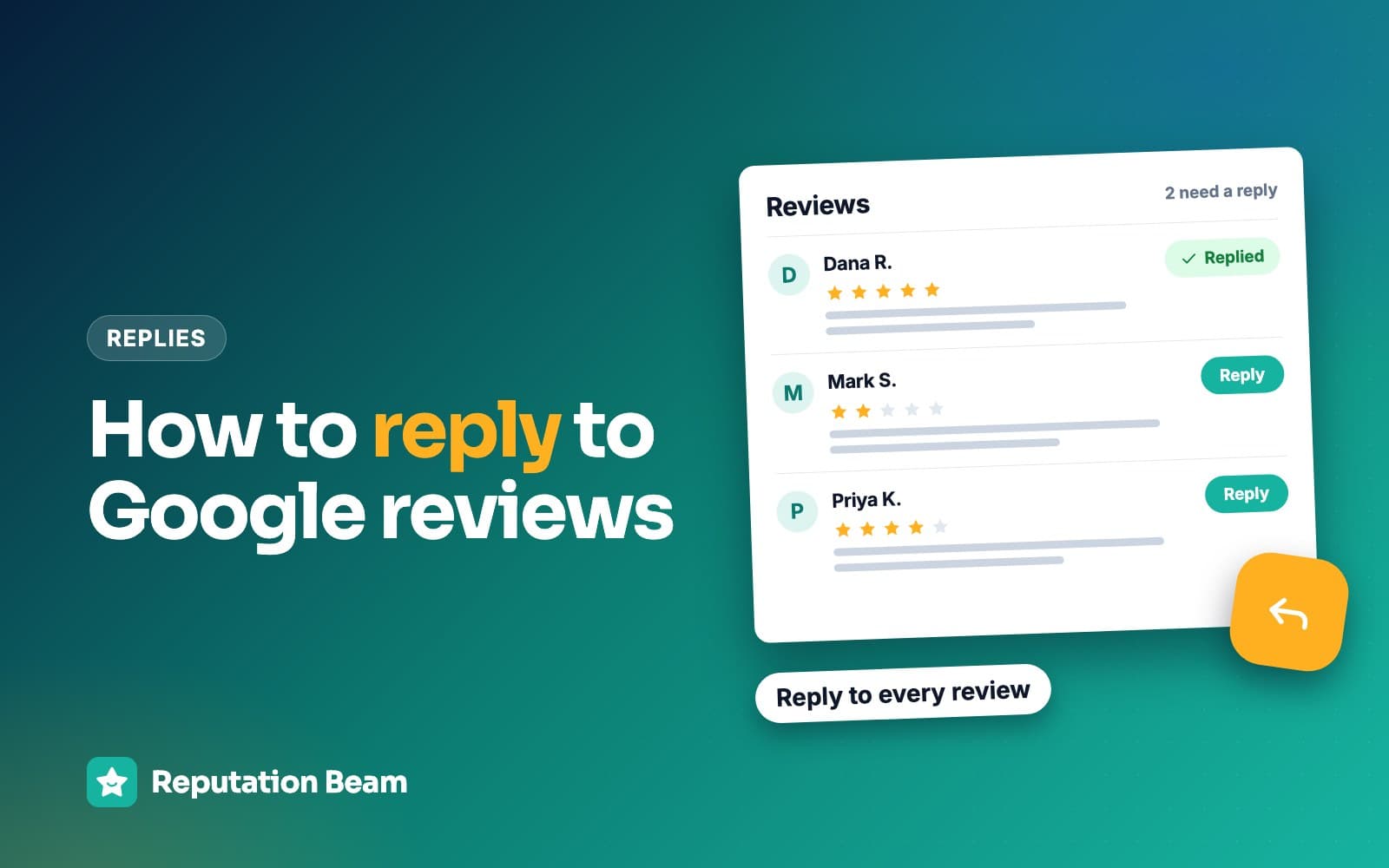
- You need a verified Business Profile and an owner or manager role. Then it's the same three selections on every device: your Business Profile, Read reviews, Reply.
- Google checks every reply before it goes public. That usually takes up to 10 minutes but can take up to 30 days, and the reviewer is notified that you replied.
- If a reply seems to be missing, look at the review in a private browser window before you type it again. Owners and the public don't always see the same thing.
- Keep replies short and conversational, with no offers and no private details. For the wording, use the guides for positive, mixed, no-comment and negative reviews.
In this guide
- How to reply to Google reviews: the short version
- Before you can reply: verification and who has access
- How to reply to Google reviews on a computer
- How to reply to Google reviews on iPhone and Android
- What happens after you press Reply
- How to edit or delete a reply to a Google review
- Why can't I reply to a Google review?
- What Google allows in a reply
- A simple routine for replying to Google reviews
- Common mistakes when replying to Google reviews
- Where Reputation Beam fits
- Keep going
Replying to Google reviews takes a minute once you know where the button is. Getting there is the hard part: the way in differs between Google Search, the Google Maps app and a computer, the button stays hidden until your profile is verified, and after you press Reply your words can sit out of sight while Google checks them.
This guide covers how to reply to Google reviews as a business owner, step by step: on a computer, on an iPhone or Android phone, who on your team can reply, what happens after you post, how to edit or delete a reply, and what to do when the Reply button is missing or your reply doesn't show up. The steps were checked against Google's help pages on October 13, 2026. Google renames buttons now and then, so if your screen looks different, the linked help page has the current wording.
What to say is a separate question, and each kind of review has its own guide, linked further down. If a review stings and you want to answer it today, start with how to respond to negative reviews.
How to reply to Google reviews: the short version
Sign in to the Google Account that manages your verified Business Profile. Open the profile from Google Search (search "my business"), the Google Maps app (tap Business) or business.google.com on a computer. Select Read reviews, select Reply next to the review, type your reply and select Reply. Google checks it before it goes public.
- 1
Verify your profile
Google requires it before the Reply button appears.
- 2
Open your Business Profile
From Search, the Maps app or a computer, signed in to the right account.
- 3
Read reviews, then Reply
Type your reply in the box and select Reply.
- 4
Check that it posted
Google reviews replies first. Look in a private window.
Those steps come from Google's Manage customer reviews help page, which gives the same three selections on every device: go to your Business Profile, select Read reviews, select Reply. What changes from one device to another is how you reach the profile.
10 min
How long Google says a reply usually takes to be reviewed
30 days
The longest Google says that review can take
Your business
Whose name the reply shows. Your personal name is not shown
Before you can reply: verification and who has access
Google's help page puts this first: "Before you can reply to reviews, you must verify your business." If your profile still shows a Get verified button, that's the first job. Google's page on verifying your business lists the methods (phone or text, email, a live video call, a video recording, a postcard) and says Google decides which ones your business is offered. After you finish the steps, Google says verification reviews take up to 5 business days.
Once the profile is verified, more than one person can reply. Google's page on Business Profile owners and managers says added owners and managers "can edit info, respond to reviews, and manage posts." Here is how the roles split.
| Role | Reply to reviews | Add or remove people | Remove the profile |
|---|---|---|---|
| Primary owner (one per profile) | Yes | Yes | Yes |
| Owner | Yes | Yes | Yes |
| Manager (once called site manager) | Yes | No | No |
| Invited, hasn't accepted yet | Not yet | No | No |
A few details from the same page matter for a small team:
- Give each person their own Google Account. Google says that's how people get access "without the need to share your password." The same goes for an agency or a freelancer who replies for you: add them as a manager.
- New owners and managers wait 7 days before they can delete the profile, remove other owners or managers, or transfer primary ownership. Replying to reviews isn't on that list.
- When you remove someone, Google says "their replies to reviews, posts, comments, and other actions stay on the Business Profile." A former employee's replies stay up under your business name, so if one needs changing, edit it yourself.
How to reply to Google reviews on a computer
A computer is the easiest place to reply to a long or difficult review, and the best place if you manage more than one location.
- Sign in to Google with the account that manages your Business Profile.
- Go to your Business Profile. Search Google for my business (or your business name and city), or open business.google.com.
- Select Read reviews.
- Next to the review you want to answer, select Reply.
- Type your reply in the box, then select Reply.
If you run two locations, or a shop and a separate service business, check the name and address on screen before you type. It's easy to answer a review on the wrong profile when both names start the same way.
How to reply to Google reviews on iPhone and Android
On a phone there are two ways in: the Google Maps app and Google Search in a browser. Google's help pages give the same steps for iPhone and Android, and both routes lead to the same Read reviews and Reply buttons.
In the Google Maps app
- Open Google Maps and make sure you're signed in to the account that manages your profile. Google says you must be signed in to that account to find your profile.
- At the bottom right, tap Business. If you manage more than one business, tap the Down arrow at the top and choose the right one.
- Open your reviews. Google's help page calls the button Read reviews.
- Tap Reply next to the review, type your reply and tap Reply.
The Business tab and Down arrow steps come from Google's page on finding your business on Google. If Business doesn't appear, check which Google Account the app is using.
In Google Search, in a browser or the Google app
- Sign in to your Google Account in Safari, Chrome or the Google app.
- Search for my business, or your business name and city.
- When your Business Profile appears, select Read reviews.
- Select Reply next to the review, type your reply and select Reply.
What happens after you press Reply
Your reply doesn't go straight onto the page. Google's help page describes what happens next, and knowing it saves worry and duplicate typing.
When you press Reply
Google checks the reply against its content policies before anyone else sees it.
Usually within 10 minutes
An approved reply is posted publicly under the review, shown as your business.
Sometimes up to 30 days
Google says checking a reply can occasionally take that long. Wait before you assume it's lost.
If it isn't approved
Google asks you to edit it. Take out whatever broke the policy and send it again.
The reviewer
Google notifies the person who wrote the review that you replied.
Any time later
The customer can change their review. If they do, its date changes to the latest update.
Two habits follow from this. Write every reply as if the customer will read it within the hour, because Google tells them it's there. And don't retype a reply that's still being checked. Each review has one reply from the business: Google's developer documentation for review replies describes posting a reply as updating "the reply to the specified review," creating one only "if one does not exist." So typing it again overwrites the first attempt, and your team can't tell which version is live.
Here's how a finished reply looks to the public. The review and the bakery are made up.
Renee T.
GoogleOrdered a birthday cake two days before the party and they still fit us in. The lemon sponge was gone in ten minutes.
Reply from Hollis Street Bakery
Thank you, Renee. Short notice is fine whenever the oven schedule allows, and lemon is a favorite in the kitchen too. Happy birthday to the guest of honor. Sam, Hollis Street Bakery
How to edit or delete a reply to a Google review
Google's help page gives these steps for changing a reply you've already posted:
- Go to your Business Profile.
- Select Read reviews.
- Under the reply you want to change, select Edit. To remove it instead, select Delete and confirm.
- Make your changes in the box and select Update.
Editing is worth the minute in four situations:
- The customer changed their review. Google says customers "can still change their review after reading your reply," and the date on the review moves to the latest update. Google's page doesn't say anything happens to your reply, so it may now sit under a review that says something different. Read the two together.
- You included something you shouldn't have, such as a surname, a detail about the visit or a price.
- A promise in your reply is out of date ("we're repaving the parking lot this month").
- You misspelled the customer's name.
Delete a reply only when it went on the wrong review or the wrong location. A deleted reply leaves the review unanswered, so otherwise edit.
Here's a made-up heating company that needed an edit after a customer raised his rating.
Before
Sorry the install ran past dinner time, Marcus. Please call the office at [business phone] so we can sort out the thermostat.
After
Thanks for updating your review, Marcus, and for letting us come back out. Glad the thermostat is behaving now. Dee, Brightline Heating
Made-up example. After a second visit the customer changed two stars to four, so the first reply no longer matched the review above it.
Updated reply after a customer changes their review
Thanks for updating your review, [First name], and for giving us the chance to [come back out / put it right]. Glad [the specific thing] is sorted now.
[Your first name], [Business name]
How to get a link to a specific review
Sometimes you want a teammate to look at one review before anyone replies, such as the technician who did the job. Google's help page gives these steps in Google Maps: search for your business name and city, select Reviews, then next to the review select More, then Share review. In the Share window, select Send a link and copy the link shown under "Link to share."
Why can't I reply to a Google review?
Usually because the profile isn't verified yet, or you're signed in with a Google Account that isn't an owner or manager of it. Google requires verification before you can reply. Less often, the review comes from another website, reviews are turned off for your category or region, or you're looking at a duplicate profile.
Here's what you might see, the likely cause and the fix.
| What you see | Likely cause | What to do |
|---|---|---|
| No Reply button anywhere | Profile not verified | Look for Get verified and finish it |
| No Business tab or no profile | Signed in to the wrong Google Account | Switch to the account that manages it |
| No Reply on one review | It comes from another website | Reply on that site if it allows it |
| No reviews section at all | Reviews unavailable for your category or region | Read Google's missing reviews page |
| Reply shows as pending | Google is still checking it | Wait. Usually 10 minutes, up to 30 days |
| Asked to edit your reply | It broke a content policy | Remove private details or insults, resubmit |
| You see it, customers don't (or the reverse) | A display delay or bug | Check in a private window, signed out |
| Replies gone after a merge | Google says merges can lose replies | Repost the ones that matter |
| Your reply's wording changed | Someone else on the profile edited it | Agree who replies |
| Reply on the wrong location | Wrong profile selected, or a duplicate | Check the address, resolve the duplicate |
No Reply button
Start with verification. Google's verification page says that when the Get verified button "appears on your Business Profile again, it means Google couldn't completely verify your business." Until that's fixed, there's no Reply button.
Next, the account. If you have a personal Google Account and a work one, the profile belongs to one of them, and you must be signed in to that one to find your profile. On a phone, check the Maps app too, since it may be signed in to your personal account.
If the Reply button is missing on only some reviews, look at where they came from. Google's page on third-party reviews says a profile may show reviews from websites that aren't Google, and that you "should contact the other website directly" about a review from that site.
Finally, reviews aren't available everywhere. Google's help page says reviews are available "only in certain countries or regions and for certain business categories," and its page on missing or delayed reviews says Google may temporarily disable reviews for some profiles or categories.
Google review reply not showing
If your reply was approved but you can't find it, or a customer says they can't see it, test what a stranger sees:
- Wait at least 10 minutes after posting, since that's Google's usual review time.
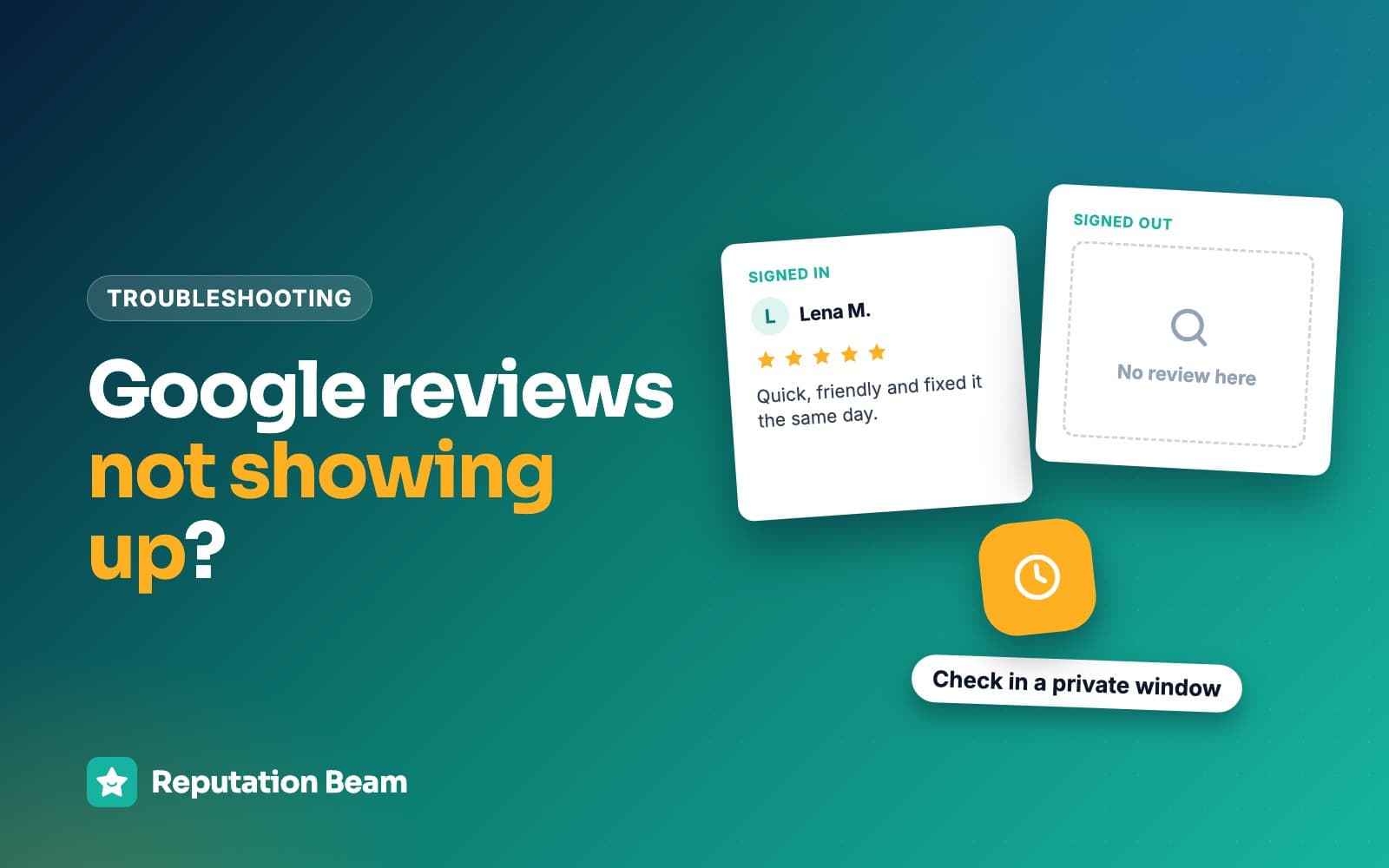
- Open a private window (Incognito in Chrome, Private Browsing in Safari), so you're signed out.
- Search your business name and city, open your reviews and find the review.
- If the reply is there, it's public, whatever your signed-in view shows.
Signed-in and signed-out views don't always match. In July 2026, Search Engine Roundtable reported that owners' replies had vanished from view while they were signed in but still showed to people signed out or in incognito mode, and Product Experts in Google's help forum called it a bug. An owner in a Local Search Forum thread described the reverse: replies visible in their dashboard but missing on Maps, across several locations. They later reported that a small edit, saved again, made a reply appear.
So check signed out before you do anything, and keep a copy of every reply you post (a shared note is enough), so you can repost the wording if a reply really is lost. Merges are one way that happens. Google's page on duplicate profiles says that when two profiles are merged, "their reviews are combined, but replies to reviews may be lost."
If it's the review itself that's missing, that's a different problem with different causes. Google reviews not showing up covers it.
What Google allows in a reply
Google's tips for writing review replies start from one rule: "Like reviews, replies must follow our policies." Then come four suggestions for every reply. Be professional and polite. Keep it short and simple, because "people might stop reading before they get to the main point." Make your replies count: instead of the same thank-you for everyone, focus on reviews where you can share a helpful update or answer a question. And be "conversational, not promotional," since reviewers are already customers and a reply is the wrong place for deals.
For negative reviews, Google adds five more: protect privacy and avoid personal attacks, be honest and explain what you can and can't do, apologize when it's warranted, address the reviewer by name with a personal sign-off, and reply promptly.
Do
- Thank the reviewer by first name
- Mention one detail from their review
- Answer the question or share the update they need
- Give a business phone or email for anything complicated
- Sign off with your first name or initials
- Reply within a few days, as a rule of thumb
Avoid
- Discount codes, deals or promotions
- The customer's surname, health details, prices or account details
- Arguing about who said what
- Pasting the same reply under every review
- Offering anything to change or remove a review
- Profanity, even in fun
Three of those come from Google's written rules, which replies have to follow:
- Private details. Google's Maps content policy bars posting "personally identifiable information and other personal information about yourself or others including financial information, medical information" without consent. It also says "we do allow merchants to post contact information related to their business including phone, email, or social media handles." Your business number is fine in a reply. The customer's details are not.
- Pasted replies. The same policy lists "posting the same content multiple times" as repetitive content it doesn't allow. One thank-you pasted under forty reviews also reads as automated to anyone scrolling.
- Offers tied to a review. Google's tips page says offering incentives "in exchange for customers to post reviews, change reviews, or remove negative reviews is considered fake & misleading content and is strictly prohibited." A reply that offers a refund if the customer edits their stars crosses that line. Fixing the problem for its own sake doesn't. Google's review policy for businesses covers the rest.
Health practices need extra care: a reply that confirms someone is a patient, or mentions their treatment, raises privacy questions beyond Google's policy, so read HIPAA-compliant review responses before replying.
Google's tip about making replies count is easiest to follow when a review asks something. Here a made-up barbershop answers the question inside a review, which helps everyone who reads it next.
Dev K.
GoogleBest fade I've had in years. Only wish I knew whether they take walk-ins, I had to book three days out.
Reply from Corner Chair Barbers
Thanks, Dev, glad the fade landed. We do take walk-ins on weekday mornings when a chair is free. For Saturdays, booking ahead is the surest way in. Luis, Corner Chair Barbers
When a review raises something you can't settle in public, Google's tips say to ask the reviewer to contact you by phone or email. Here's a reply for that.
Reply that takes a complicated issue offline
Hi [First name], thank you for telling us about [the issue, in their words]. We'd like to look into this properly. Please call [your name] at [business phone] or email [business email], and we'll go through it with you.
[Your first name], [Business name]
What to say for each kind of review
This guide is about getting the reply posted. The wording depends on the review, and each of these guides has worked examples.
Mixed feelings
Three and four stars
Thank them and answer the one thing that fell short. See how to respond to a 3-star review.
Nothing to quote
Stars with no words
A brief reply still shows you're paying attention. See replying to a review with no comment.
Complaints
One and two stars
Calm, specific and short, with the rest offline. See how to respond to negative reviews.
No record of them
Reviews you think are fake
Reply carefully and report it. See responding to fake reviews on Google and removing a Google review.
Different site, different rules
Yelp reviews
Yelp works differently. See how to respond to Yelp reviews.
A simple routine for replying to Google reviews
Replies go wrong less often when one person owns them. Pick who replies, how often they check, and what happens with complaints, then write it down so a new hire can follow it. Google's tips say to reply promptly; a workable rule of thumb is to check twice a week and reply within two working days.
Team note: how we reply to Google reviews
Who replies: [name], with [name] as backup when they're away.
When: we check reviews every [Monday and Thursday] and reply within [two working days].
How: first name only, one detail from their review, sign with your first name. No prices, no health or account details, no offers.
Complaints: [owner's name] replies, after talking to whoever handled the job.
After posting: check the reply in a private window, then paste a copy into [shared note].
Before you press Reply
0 of 8 done
Common mistakes when replying to Google reviews
The posting mistakes (retyping a reply under review, trusting the signed-in view, answering on the wrong location) are covered above. These are the wording mistakes, with made-up examples from a cafe, a dental office and an auto shop.
Before
Thanks so much! Show this review at the counter next time for a free coffee.
After
Thanks, Jo. Glad the cold brew hit the spot on a hot day. See you next time. Mia, Little Kettle Cafe
Google's tips say to avoid deals and promotions in replies, and a freebie tied to a review is an incentive Google prohibits.
Before
Hi Mrs. Patel, so glad your root canal went smoothly last Tuesday.
After
Thank you for the kind words. We're glad you felt comfortable with the team.
A surname and a treatment in public. Google's policy bars posting someone's medical information without consent.
Before
That's not what happened. You came in 40 minutes late and still expected same-day service.
After
Thanks for the feedback, Omar. Same-day service depends on when the car arrives, and we should have explained that at drop-off. Please call me at [business phone]. Tony, Westgate Auto
Google's tips say to avoid personal attacks and explain your limits honestly. The facts can stay without the blame.
Where Reputation Beam fits
Everything in this guide works from Google directly. If you'd rather keep reviews and replies in one place, Reputation Beam shows your Google and Yelp reviews together in one feed in its dashboard, and replies to Google reviews can be posted from there. Yelp reviews are read-only in the dashboard, so Yelp replies still happen on Yelp. Your Business Profile still needs to be verified: Google's developer documentation says replying through the system apps use is "only valid if the specified location is verified." After you post, the private-window check works the same way.
Reputation Beam also sends review requests by text message and email from the same dashboard.
Keep going
Once the button works, the wording is the next question. Start with how to respond to positive reviews for the reviews you'll get most, how to respond to a 3-star review for the mixed ones and how to respond to negative reviews for complaints. If a review breaks Google's rules, how to remove a Google review explains reporting it. And if you want more reviews to reply to, how to ask customers for reviews has the wording and the rules for asking every customer the same way. If the Reply button is missing because the profile isn't verified, how to claim and verify your Google Business Profile walks through each method Google may offer.
Questions people ask
Why can't I reply to a Google review?
Usually because your Business Profile isn't verified yet, or you're signed in with a Google Account that isn't an owner or manager of the profile. Google requires verification before you can reply. Check for a Get verified button, then check which account you're using. Less often, the review comes from another website (reply there instead), reviews are unavailable for your category or region, or you're looking at a duplicate profile.
How long does it take for a reply to a Google review to show up?
Google checks every reply against its content policies before posting it. Its help page says replies usually take up to 10 minutes to review, but sometimes the review can take up to 30 days. If a reply isn't approved, Google asks you to edit it. While you wait, don't retype the reply. Check it later in a private browser window to see what the public sees.
Does the customer get notified when I reply to their Google review?
Yes. Google says the person who wrote the review is notified when you reply. Your reply also appears publicly under their review, shown as your business rather than your personal name. Customers can still change their review after reading your reply, and if they do, the date on the review updates to the latest change. Write every reply as if the reviewer will read it the same day.
Can I edit or delete my reply to a Google review?
Yes. Go to your Business Profile, select Read reviews, and under your reply select Edit. Make your changes and select Update. To remove the reply instead, select Delete and confirm. Editing is worth doing when the customer updates their review, when a promise in your reply is out of date, or when you spot a private detail or a misspelled name.
How do I reply to Google reviews on my iPhone?
Use the Google Maps app or Google Search. In Maps, signed in to the account that manages your profile, tap Business at the bottom right, open your reviews and tap Reply. In Safari, Chrome or the Google app, search for my business, select Read reviews and then Reply. Google's help pages give the same steps for iPhone and Android.
Why is my Google review reply not showing?
It may still be in review, which Google says usually takes up to 10 minutes and sometimes up to 30 days. If it should be live, open a private browser window, search your business name and city, and look at the review while signed out. Google has had display bugs where signed-in owners and the public saw different things. Replies can also be lost when duplicate profiles are merged.
Can a manager reply to Google reviews, or only the owner?
Managers can reply. Google's page on Business Profile roles lists responding to reviews among the things both owners and managers can do. Managers can't add or remove people or remove the profile. Give each person their own Google Account and add them as a manager instead of sharing your password. Their replies show under your business name, and Google says they stay on the profile after you remove the person.
Was this guide helpful?
Get the free review request checklist and new guides
Twenty checks to run before you ask customers for reviews, as a one-page PDF. After that, a short email when new guides go up, at most once a week.