Key takeaways
- Copy your Google review link from your Business Profile: select Read reviews, then Get more reviews, then Copy. Google says the review QR code can currently be made only in a computer browser.
- If you can't reach that screen, you can build a link by hand from your Place ID. Google doesn't document that format in its Business Profile help, so test it and switch back to the official link when you can.
- Test the link signed out, in a private window and on a phone with no Google account before you print it or send it, and test again after any change to your profile.
- Broken links often trace back to the profile itself (unverified, suspended, closed, duplicated, or the wrong location). Whatever link you use, every customer gets the same one.
In this guide
- How to get your Google review link
- What your Google review link should look like
- How to build a Google review link from your Place ID
- How to test your Google review link
- Why your Google review link stops working
- Should you shorten or track your Google review link?
- Do you need a Google review link generator?
- Where to put your Google review link
- Send the same Google review link to every customer
- Common mistakes with Google review links
- Where Reputation Beam fits
- Keep going
Your Google review link is the web address that opens the review form for your business, with the stars ready to tap. Send it, and customers skip the search, the scrolling and the hunt for the right button. Leave it out, and a polite "sure, I'll leave you a review" can easily go nowhere.
This guide shows how to get your Google review link on a computer, in Google Search on a phone and in the Google Maps app, how to build one by hand from your Place ID when the button is missing, and how to test it before it goes on a box of receipts. It also covers why review links break, whether to shorten or track yours, whether a free generator adds anything, and where to put the link once it works.
The link is half the job. For the words around it, how to ask customers for reviews has templates for texts, emails and asking in person.
How to get your Google review link
Sign in with the Google Account that manages your Business Profile and open the profile. Select Read reviews, then Get more reviews, and select Copy. To save the QR code, right-click it and choose Save image as. Those are the steps on Google's help page, which says the QR code can currently be made only in a computer browser.
On a computer
- 1
Sign in
Use the Google Account that owns or manages the Business Profile, not your personal one.
- 2
Open your profile
Search Google for 'my business', or for your business name and city.
- 3
Find the review option
Select Read reviews, then Get more reviews.
- 4
Copy the link
Select Copy. For the QR code, right-click it and choose Save image as.
If you can't find the button, check the account first. Google's page on finding your business on Google says that to find your profile, "you must sign in to the Google Account associated with it." If the shop's profile is managed from the office account and you search while signed in to your personal Gmail, you'll see your listing the way a customer does, with no owner tools on it.
The Get more reviews window also offers other ways to share. Google's page mentions sending review requests through email, WhatsApp or a Facebook post. Copying the link gives you the most freedom, because you can paste it into anything.
On a phone, in Google Search
Google's review link page doesn't give separate steps for phones. Start the same way. Open the Google app or your phone's browser, check that you're signed in to the account that manages the profile, and search for "my business" or your business name and city, as Google's page on finding your business suggests. If your profile shows owner options, look in its reviews section for Get more reviews, then copy or share the link. Google doesn't document the phone version of this screen, so the button may be named differently or be missing.
If the option isn't there on your phone, copy the link on a computer and email it to yourself. It's the same link either way.
On a phone, in the Google Maps app
Google's help says that in the Google Maps app you tap Business at the bottom right. If you have more than one business, tap the Down arrow at the top and select the one you want. From there, open the reviews area of your profile and look for the option to get more reviews or share a review link. Google's review link page doesn't describe the app, so if you can't find it, use a computer.
If you manage more than one location
Each location has its own Business Profile and its own review link. Pick the location first, copy the link from inside that profile, and label it so nobody mixes them up.
| Where you start | What to do | Good to know |
|---|---|---|
| Computer browser | Open your profile, select Read reviews, then Get more reviews, then Copy | The only place to get the review QR code |
| Google Search on a phone | Search "my business" while signed in, then open the reviews section | Google gives no phone steps, so a computer is the fallback |
| Google Maps app | Tap Business at the bottom right, then open your reviews | Use the Down arrow at the top to switch businesses |
| Several locations | Choose the location first, then copy its link | Every location has a different link |
Here's how the location mix-up plays out (a made-up example). Harbor Street Dental has two offices, one downtown and one in Westfield. The office manager copies the review link once, from the downtown profile, and both front desks paste it into their after-visit emails. Every Westfield patient who leaves a review ends up on the downtown profile, and the Westfield listing stays thin. The fix takes five minutes: copy each office's link from its own profile and keep both in the email templates, labeled by office.
What your Google review link should look like
Several kinds of Google links get called a review link, and only some open the review form directly. If you've searched for "the Google review link for my business" and found different answers, this is why.
| Link | Where it comes from | What it opens | Use it? |
|---|---|---|---|
| Review link | Get more reviews, then Copy | The review form for your business | Yes |
| Place ID link | Built by hand from your Place ID | The review form, as long as Google keeps the format working | As a backup, after testing |
| Maps share link | The Share button on your Maps listing | Your listing, where customers still look for the review button | No |
| Address bar link | Copied from the browser on Maps or Search | A map or search view, often very long | No |
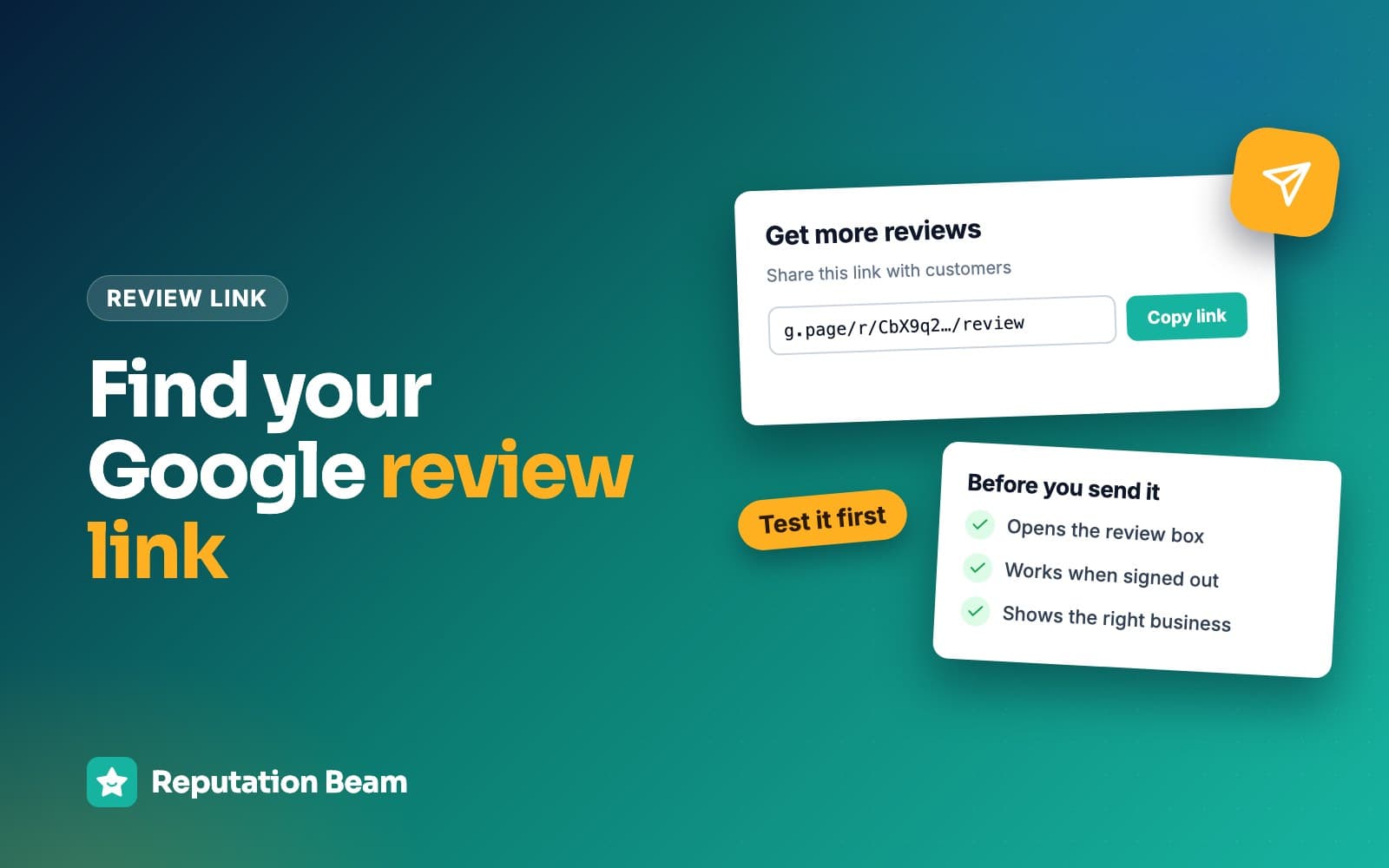
The link from Get more reviews is short. At the time of writing it usually begins with g.page and ends in /review, though Google can change the format whenever it likes. If what you copied is a long address full of letters, numbers and map coordinates, you've probably copied the address bar or a share link instead.
On a phone the difference is real: a Maps share link leaves the customer scrolling your listing for the review button, while the review link opens the form.
How to build a Google review link from your Place ID
If you can't reach the Get more reviews screen (the person who manages the profile is away, say, or you're helping a client who hasn't given you access yet), you can build a Place ID review link by hand. A Place ID is the code Google uses to identify one place on Google Maps, and Google's Place ID documentation describes it as "a textual identifier that uniquely identifies a place."
- Open Google's Place ID Finder on its developer site.
- Type your business name in the search box on the map and pick your listing from the suggestions. Check the address, because businesses with similar names are easy to mix up.
- Copy the Place ID shown for your listing.
- Paste it on the end of this address, with no spaces:
https://search.google.com/local/writereview?placeid=
- 1
https://search.google.com/local/writereview
The review page
The page that shows a review form. Google doesn't list this address in its current Business Profile help, so treat it as unofficial.
- 2
?placeid=
Which place
Tells that page which business to open. Type it exactly, lowercase.
- 3
[your Place ID]
Your Place ID
Pasted from the Place ID Finder, with no spaces before or after it.
This format has been around for years and is the one many free generators build, but it is Google's to change or retire without notice. When we checked on October 13, 2026, a link built this way sent a signed-out visitor to Google's sign-in page, which is also where a signed-out customer lands with the official link.
Google's developer documentation gives one more reason to re-check: "Place IDs may change over time," and a Place ID "may become obsolete if a business closes or moves to a new location." A link that worked last year can fail after a move.
How to test your Google review link
Open the link the way a customer will: signed out of Google, on a phone that isn't yours, from the actual text, email or printed code you plan to use. Check that it shows your business name and address, then either Google's sign-in page or the review form. Do all of this before anything goes to print.
Testing on your own phone tells you very little. You're signed in to the account that manages the profile, so you skip the sign-in step that every signed-out customer hits, and you may see owner screens that customers never do.
Test before you share
0 of 9 done
When a signed-out customer opens the link, Google asks them to sign in first. That is expected: Google's tips for getting more reviews say "Customers must be signed into a Google Account to leave a review," and that they can set one up with a non-Gmail email address. On a phone with Google Maps installed, the link may open in the app instead of the browser. Either way, the customer should end up on the review form for your business.
Customers will still tell you the link "didn't work." Often it worked and asked them to sign in. Here's a made-up exchange at a grooming salon.
Customer
I tried that review link you texted, but it just wants me to log in to something.
You
That's Google asking you to sign in. Reviews have to come from a Google account. Does the page show our name at the top?
Customer
It does. I don't have Gmail, though.
You
Google lets you make an account with any email address. No pressure at all, and thanks for trying it.
When to test it again
A link that worked in March can fail in June if something changes on the profile. Put these on the calendar.
The day you copy it
Run the full checklist above.
Before anything goes to print
Scan the QR code on the printer's proof as well as the file on your screen.
After any profile change
A move, a name change, a merged or removed duplicate, a new owner or a new location.
Every few months
As a rule of thumb, open it once signed out and once from a QR code you've printed.
Why your Google review link stops working
When a review link fails, the cause is usually the profile behind it: unverified, suspended, closed, restricted, duplicated, or a different location from the one you meant. The rest are copy-and-paste problems. Work down this table from the top.
| What you see | Likely cause | What to do |
|---|---|---|
| No Get more reviews option | Wrong Google account, or the profile isn't verified | Switch accounts, or finish verification |
| Customers can't find your listing | Profile unverified, suspended or disabled | Verify, or appeal the suspension |
| Link opens the wrong business or location | Copied from a duplicate or another location | Copy it again from the right profile |
| No new reviews appear | Marked permanently closed, or restricted after fake reviews | Fix the status, or appeal the restriction |
| Place ID link suddenly fails | The Place ID changed after a move or merge | Look the ID up again, or use the official link |
| Link opens a sign-in page | The customer isn't signed in to Google | Normal. They sign in, then review |
| Link opens nothing at all | Cut off when pasted, or a typo | Paste it again from the source and re-test |
Unverified, suspended or disabled profiles
Google's page on finding your business says "Only verified businesses can show their business info on Maps and Search," and that a profile that breaks Google's guidelines "becomes disabled or suspended and won't show to other users on Google until you resolve the issue." A review link to a profile customers can't see won't bring in reviews.
If your profile is new, verify your business first; the verification options Google offers depend on your business type, region and other details. If it's suspended, Google's page on fixing suspended or disabled profiles explains the appeal tool and says not to create a new Business Profile for the same business. For a profile that's brand new, getting Google reviews for a new business covers the first few weeks.
Restrictions after fake or paid reviews
Google's page on Business Profile restrictions says that if it finds a business owner has broken its Fake Engagement policy, the possible restrictions include a profile that "will not be able to receive new reviews or ratings for set period of time," existing reviews being unpublished for a while, and a warning shown to customers. Google says it emails owners before applying a restriction, and owners can appeal. While a restriction like that is in place, even a perfect link won't bring in new reviews.
Closed, moved, duplicate or merged listings
Google's page on moving your reviews across Business Profiles covers most of these. It says: "Do not create a new Business Profile because of a change in a physical location or ownership." If you move to a new address and keep the same name, Google says it transfers your reviews automatically. If you created a second profile by accident after a move or a change of owner, you can contact Google to transfer the reviews. The same page notes that customers "can leave new reviews for temporarily closed businesses but not for permanently closed ones," so a profile marked permanently closed by mistake stops taking reviews.
A made-up example: Rise and Crumb Bakery moved across town and, instead of updating its address, the owner made a fresh profile. Customers who scanned the old QR code on the takeout bags reviewed the old listing; customers who searched found the new one. The owner asked Google to move the reviews and removed the duplicate, then re-copied the review link from the profile that stayed, re-ran the checklist and reprinted the bags.
Two smaller causes round it out. Google's page on managing customer reviews says reviews "are available only in certain countries or regions and for certain business categories." And if reviews post but then don't appear, the link is fine and something else is going on: Google reviews not showing up walks through the usual reasons.
Should you shorten or track your Google review link?
Shortening is usually unnecessary, because Google's link is already short. The one change worth considering is a page on your own website, such as yourbusiness.example/review, that forwards to your Google review link. It's easy to read aloud, and you can change where it points without reprinting a thing.
A forwarding page on your own website
- If Google's link changes, you update one setting instead of reprinting cards, signs and bags
- It's easy to say over the phone and type from a printed card
- Your business name is in the address, which looks less like spam
- Your website's visitor stats can show roughly how often it's used
What it costs you
- If your website is down, the link is down too
- Someone has to set it up and remember it exists
- It adds one more step that can break, so it needs the same testing
Free public shorteners are a different matter, especially in text messages. The wireless industry's Messaging Principles and Best Practices (CTIA, May 2023 edition) say that where a URL shortener is used, senders "should use a shortener with a web address and IP address(es) dedicated to the exclusive use of the Message Sender." A free public shortener is shared by everyone who uses it. If you want a shorter link in texts, ask your texting provider what it supports, and read the rules for texting customers before sending any.
As for tracking, the tags some marketers add to the end of links (the "utm" kind) don't help here. The click goes to Google, so your website's analytics never sees it. If you want to count how many people use the link, the forwarding page on your own site is where that count can happen.
The measure that matters most is simpler: how many customers you asked this week, and how many new reviews showed up. If that gap is wide, test the link first, then look at the wording and the timing of your request.
Do you need a Google review link generator?
Most businesses don't. Google gives you the review link and a QR code for free, from your own profile. A generator mostly repackages one of those.
Best choice
Google's own link
Free, comes straight from your profile, and the QR code is on the same screen (on a computer). Needs owner or manager access.
Backup
Hand-built from your Place ID
Works without owner access. The format is unofficial, so test it and replace it with Google's link when you can.
Adds little
A free generator site
Either builds the same Place ID link for you, or wraps your link in a short address on its own domain. The second puts another company in the middle.
If you do try one, look at the finished link before you use it. If it points at a google.com address, it's most likely the same Place ID link you could have built yourself, and the testing rules above apply. If it points at the generator's own domain, every customer passes through that company on the way to Google, and your printed signs depend on it staying in business. Skip any generator that asks for your Google password; nothing about a review link needs it. Our free Google review link generator builds the google.com Place ID link from a search, with nothing of ours in between and no sign-in.
Where to put your Google review link
Google's help page suggests putting the link on receipts, in thank-you emails and at the end of a chat, and printing the QR code for display in your store. Anywhere a customer sees it after the visit works, as long as everyone sees the same thing.
Places your review link fits
- Text after the visit
- Thank-you email
- Invoice
- Receipt
- Email signature
- After-visit booking message
- Website footer
- QR code on a counter card
- Leave-behind card
- End of a chat
Booking systems deserve a note. The confirmation and reminder messages go out before the visit, when the customer has nothing to review yet. Put the link in the "thanks for coming in" message that goes out after the appointment instead. The best time to ask for a review goes through timing by type of business.
For printed signs and cards, the QR code is the link in a form people can scan; making and placing a Google review QR code covers sizes, materials and where to put it. Here are copy boxes for the rest.
One line for anywhere
Would you leave us an honest review on Google? [review link]
Text after the visit (only to customers who agreed to texts)
Hi [First name], it's [Business name]. Thanks for having us out today. If you have a minute, would you leave an honest review on Google? [review link] Reply STOP to opt out.
Email signature for owners and staff
[Your name], [Business name] [phone number] Worked with us recently? We'd be grateful for an honest Google review: [review link]
Invoice or receipt line
Thank you for choosing [Business name]. If you have a minute, an honest review on Google helps us a lot: [review link]
After-visit booking message (salon, clinic, studio)
- To
- [Customer email]
- Subject
- Thanks for visiting [Business name]
Hi [First name],
Thanks for coming in to [Business name] today. If you have a minute, we'd be grateful for an honest review on Google: [review link]
See you next time, the team at [Business name]
[Business name], [street address, city, state, ZIP]. Don't want emails like this? [unsubscribe link]
For full email templates with subject lines, see review request email templates. And keep any Yelp link out of these. Yelp's content guidelines say "Businesses should never ask customers to write reviews," so a review request should carry your Google link only.
Send the same Google review link to every customer
The link goes to everyone, in the same way. Google's Maps user contributed content policy lists "Discourage or prohibit negative reviews, or selectively solicit positive reviews from customers" among the things merchants must not do. The FTC's guide on soliciting and paying for online reviews puts it plainly: "Don't ask for reviews only from customers you think will leave positive ones."
The easiest way to stay inside that rule is to let the link travel on things every customer gets: every invoice, every receipt, every after-visit text. Then nobody on the team has to decide who deserves to see it, and nobody picks only the customers who were all smiles.
Google's review policy for businesses covers the full set of rules, whether you can offer incentives for Google reviews covers discounts and prize draws, and the FTC fake review rule covers the federal side.
Common mistakes with Google review links
Link mistakes are usually small, and they cost reviews quietly. Each rewrite below fixes one.
Before
Find us on Google and leave a review!
After
Would you leave us an honest review on Google? [review link]
Asking people to search for you adds steps where they give up. Send the link itself.
Before
A link copied from the Share button on Google Maps
After
The link from Get more reviews, then Copy
A share link opens your listing. The review link opens the form.
Before
Leave us 5 stars here: [review link]
After
If you have a minute, would you leave an honest review? [review link]
Google's policy says not to try to influence the rating. Ask for honesty and leave the stars to the customer.
Before
One link pasted into the templates for both locations
After
Each location's own link, labeled in each template
Every location has its own profile and its own review link.
Before
A free public short link printed on 2,000 takeout bags
After
Google's link, or a forwarding page on your own website
If the shortener changes or disappears, you can't fix what's already printed.
Before
Tested once on the owner's phone
After
Tested signed out, in a private window and on a phone with no Google account
Your own phone skips the sign-in step customers see.
One more, common in shops with several people sending requests: everyone keeps their own copy of the link in their own notes, and when it changes, half the team keeps sending the old one. Keep one copy in one shared place (your texting tool's template, a pinned note, the front desk binder) and update it there.
Where Reputation Beam fits
Reputation Beam sends review requests by text message and email from one dashboard, using templates with placeholders for the customer's name, your business name and the review link, so the link isn't retyped by hand for every customer. You can add customers one at a time or import a CSV file, each customer's permission to be texted is recorded, and a Square connection can send a request after an appointment. Your Google and Yelp reviews show up together in one feed, and you can reply to Google reviews from there. Each Reputation Beam request carries its own link that expires after 72 hours.
Keep going
With a link that works, the next questions are what to say and when. How to ask customers for reviews has the wording for texts, emails and asking at the counter, and how to get more Google reviews puts the whole routine together. If you want reviews on your own site as well, see how to add Google reviews to your website. And once reviews start arriving, how to reply to Google reviews covers what to say back, good and bad.
Questions people ask
How do I get my Google review link?
Sign in with the Google Account that manages your Business Profile and open the profile, for example by searching for my business on Google. Select Read reviews, then Get more reviews, and select Copy. Those are the steps on Google's help page. Google doesn't give separate phone steps, so on a phone open your profile in Google Search or from Business in the Google Maps app and look for the same option. Test the link before you share it.
Why is my Google review link not working?
Check the profile first. Google says only verified businesses show on Maps and Search, a suspended profile is hidden until the issue is fixed, a permanently closed business can't get new reviews, and a profile can be blocked from new reviews for a period after fake-review activity. Then check the link itself: it may belong to a duplicate listing or another location, or it may have been cut off when pasted. Being asked to sign in is normal, because Google says customers must be signed in to a Google Account to leave a review.
Do I need a verified Business Profile to get a review link?
Google's review link page doesn't say so in as many words. The Get more reviews option sits in the owner view of your profile, so you need to be signed in with an account that owns or manages it, and Google says only verified businesses can show their business info on Maps and Search. Verify first. A link to a profile customers can't see won't bring in any reviews.
What is a Place ID and how do I find mine?
A Place ID is the code Google uses to identify one place on Google Maps. You can look yours up with Google's free Place ID Finder on its developer site: type your business name, pick your listing and copy the ID. Some owners use it to build a review link by hand. Google says Place IDs can change over time, for example when a business closes or moves, so re-test any link built from one.
Are free Google review link generators safe to use?
A free generator typically does one of two things. It looks up your Place ID and builds the same hand-made link you could build yourself, or it gives you a short link on its own domain that forwards to Google. The first adds nothing you can't do in a minute. The second puts a company you don't control between your customers and your review page, so if it shuts down or changes the forwarding, every printed copy breaks.
Should I shorten my Google review link?
Usually there's no need, because Google made this link for receipts, emails and chats, and it's normally short already. If you want one that's easier to read aloud, set up a page on your own website, such as yourbusiness.example/review, that forwards to it, so you can change where it goes without reprinting anything. For text messages, CTIA's best practices say that where a shortener is used, it should have a web address and IP addresses dedicated to the sender.
Can I make a Google review QR code on my phone?
Not with Google's own tool at the moment. Google's help page says review QR codes can only be generated in a computer browser, not on mobile devices. On a computer, open Get more reviews, right-click the QR code and choose Save image as. You can copy the link on a phone and turn it into a QR code later, but scan the finished code with a couple of phones before you print it.
Was this guide helpful?
Get the free review request checklist and new guides
Twenty checks to run before you ask customers for reviews, as a one-page PDF. After that, a short email when new guides go up, at most once a week.